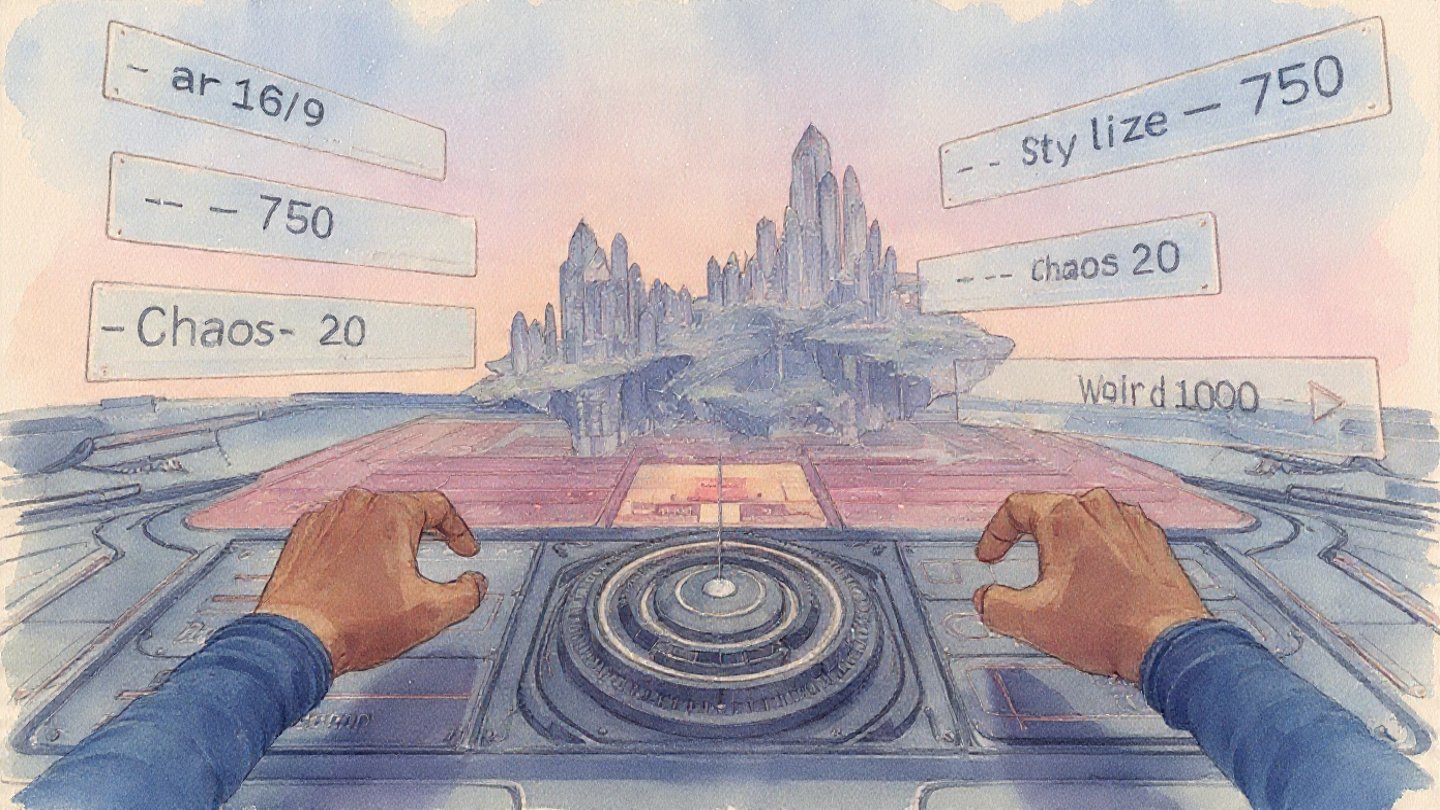
The prompt is only 50% of the work. The rest is hidden in the parameters. If you are still rolling the dice and hoping for a good result, you are just a hobbyist. To operate as a commercial professional, you must stop relying on luck and start forcing the AI to adhere to your strict aspect ratios and stylization needs.
Parameters are the precise dials and switches that separate the casual user from the “Power Prompter.” This guide covers the advanced syntax that allows you to control the chaos.
Deep Dive into Parameters: Controlling the “AI Hallucination”
Midjourney v6 is opinionated. It has a default aesthetic that it applies to every image. To get what you actually asked for—rather than what the AI thinks looks good—you need to master three specific controls.
1. --stylize (The Artistic Freedom Slider)
This parameter controls how strictly Midjourney adheres to its own artistic training versus your prompt.
- Range: 0–1000 (Default: 100)
- Low (
--s 50): Commercial/Literal Mode. The AI ignores its artistic flair and listens strictly to your text. Use this for logos, UI designs, or specific product photography where accuracy is paramount. - High (
--s 750): Fine Art Mode. The AI takes liberties with lighting, composition, and texture. Use this for abstract concepts, album covers, or editorial illustrations where “vibe” matters more than accuracy.
Pro Tip: For photorealistic product shots, keep
--stylizelow (50-100) to prevent the AI from adding unnecessary “artistic” clutter.
2. --chaos (The Variation Engine)
By default, Midjourney tries to give you four “safe” variations that look similar. Chaos breaks this pattern.
- Range: 0–100 (Default: 0)
- High (
--c 60): Tells the model to explore radically different compositions, angles, and color palettes for the same prompt. - Use Case: Ideal for the “Ideation Phase.” When you are brainstorming a campaign concept and want to see four completely distinct directions (e.g., one macro, one wide-angle, one minimal, one neon).
3. --weird (The Avant-Garde Switch)
While --chaos changes composition, --weird introduces unexpected subject matter and aesthetic quirks.
- Range: 0–3000 (Default: 0)
- Use Case: High-fashion editorials, music videos, and experimental branding. It injects the “strange” quality often found in high-end fashion photography (strange poses, unusual crops, alien logic).
Aspect Ratios (–ar): The Social Media Cheat Sheet
Stop cropping your images in post-production and losing resolution. Generate native aspect ratios that fill the screen perfectly.
| Platform / Use Case | Aspect Ratio | Parameter |
| Instagram Stories / TikTok / Reels | Vertical Full Screen |
--ar 9:16
|
| Instagram Feed (Portrait) | Optimized Vertical |
--ar 4:5
|
| YouTube Thumbnail / Web Banner | Standard Widescreen |
--ar 16:9
|
| Cinematic Film Still | Ultra-Widescreen |
--ar 2.39:1
|
| Profile Pictures / Logos | Square (Default) |
--ar 1:1
|
Note: In Midjourney v6, you can use any ratio (e.g.,
--ar 2:5), but the ones above are the industry standards for digital marketing.
Permutations: How to A/B Test 10 Prompts in Seconds
The mark of a “Power User” is efficiency. Instead of typing out five different prompts to test colors or materials, use Permutations. This allows you to generate multiple variations with a single command using curly brackets {}.
The Syntax
Wrap your variable options in curly brackets, separated by commas.
The Prompt:
“A luxury perfume bottle made of {sapphire glass, matte black ceramic, rose gold metal} sitting on a rock, studio lighting –ar 4:5″
The Result:
Midjourney will instantly trigger three separate jobs:
- …bottle made of sapphire glass…
- …bottle made of matte black ceramic…
- …bottle made of rose gold metal…
Advanced Permutations (Nested):
“A {cyberpunk, steampunk} portrait of a woman wearing {neon, leather} goggles –ar 16:9″
This generates four jobs (2×2 combinations), allowing you to rapid-test style combinations without wasting hours typing.
Conclusion
Parameters are not optional add-ons; they are the syntax of control. By mastering --stylize for fidelity, --ar for platform intent, and {permutations} for workflow speed, you move from “generating images” to directing assets.