AI filmmaking is absolutely fascinating. While some critics argue it stifles creativity, for many creators, it is the exact opposite. AI allows you to visualize any idea you can imagine, removing the barriers of budget, location, and actors. However, for most people, getting started feels overwhelming. There are too many tools, complex prompting workflows, and a steep learning curve. If you have ever wondered how to create cinematic AI videos without getting lost in technical jargon, this guide is for you.
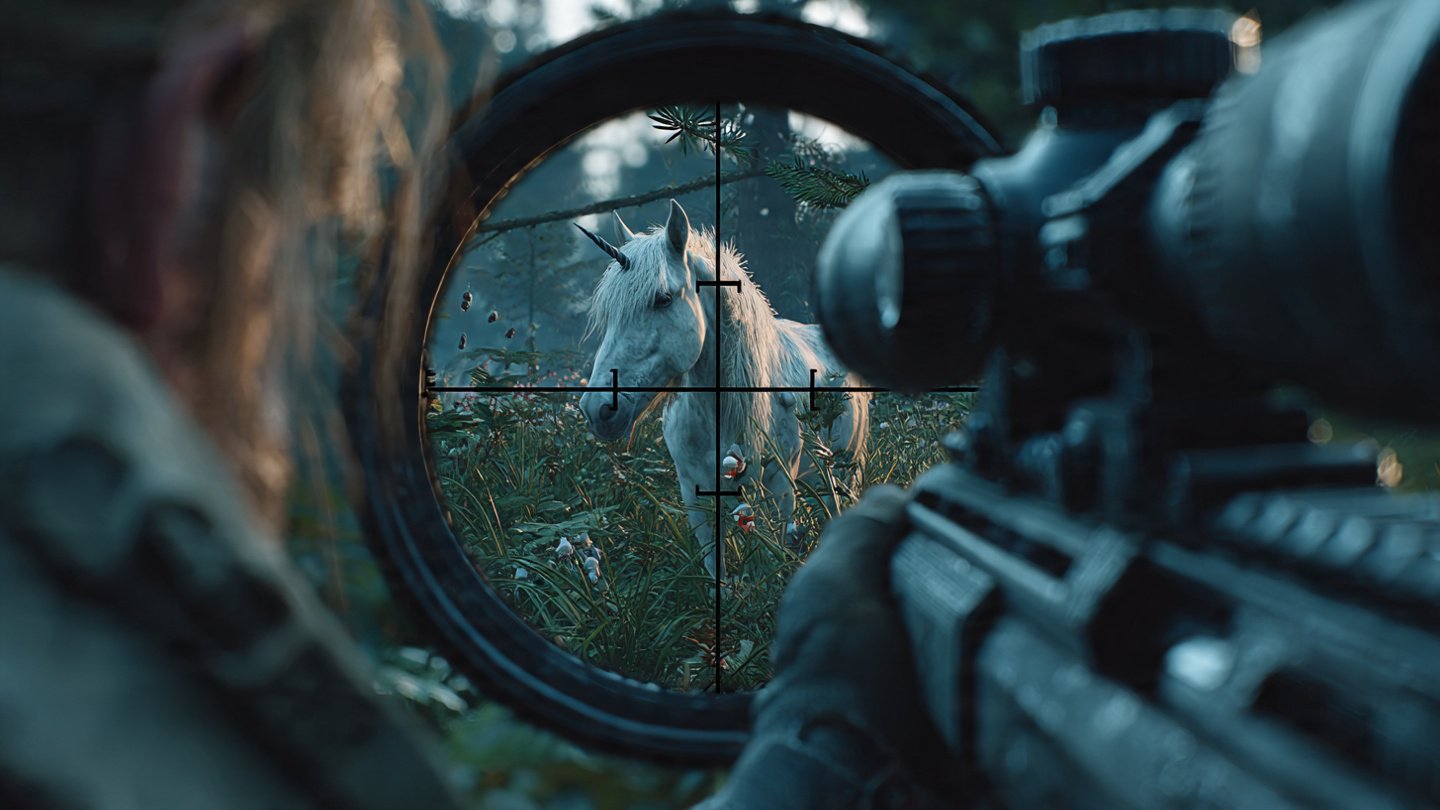
Based on a workflow that created a gritty “Hunter vs. Unicorn” short film, here is the complete breakdown of how to make your own AI movie in three main stages: Generating Scenes, Animating, and Post-Production.
Step 1: Establish Your Idea and “Hero Shots”
The first step to making a cohesive movie is defining your characters and scenes. You cannot just prompt randomly; you need consistency.
The “Hero Shot” Technique
Before you animate anything, you need to generate a “Hero Shot”—the definitive image of your main character that will serve as a reference for the rest of the film.
- The Tool: Use an all-in-one platform like Open Art. This allows you to access various models (like Google Veo, Kling, or specialized image generators) in one place without switching tabs.
- The Process: Write a detailed prompt describing your character. For example: “A white unicorn drinking from a shallow jungle stream at dusk, soft rays of sunlight filtering through.”
- Selection: Generate a batch (always do 4 or more) and pick the absolute best image. This is your anchor.
Maintaining Character Consistency
To keep your character looking the same across different scenes (e.g., changing from a wide shot to a close-up), use your Hero Shot as a Reference Image (often called an “Omni reference” in tools like Open Art).
- Prompting for Consistency: When generating a new angle, keep the prompt description of the character identical but change the camera instruction.
- Example Prompt: “Keep the same person, pose, lighting, and composition, change only the clothing.”
Step 2: Generating Scene Variations
Once you have your characters, you need to build the world around them. You don’t want a movie composed entirely of static medium shots.
Camera Angles and Movement
Use your Image Generator (like the “Nano Banana” model mentioned in the workflow) to create different cinematic angles using your Hero Shot as a reference:
- Aerial Views: Ask the AI to “Change the camera to a top-down aerial view.”
- POV Shots: For a sniper scene, prompt for “A cinematic close side view of a hunter lying prone… looking through the scope.”
- Detail Shots: Generate extreme close-ups, such as an eye opening or a hand gripping a phone.
Pro Tip: Organize your generated images into a storyboard using Figma or a simple Google Doc. This helps you visualize the flow before you spend credits on animation.
Step 3: Animating Your Scenes (Image-to-Video)
Now comes the magic: turning still images into video.
The Tools
- Kling 2.1: Excellent for specific camera movements because it allows you to set a Start Frame and an End Frame.
- Kling 2.5: Often has better prompt adherence for complex actions (like a character taking a phone out of their pocket).
- Google Veo 3.1: Great for generating quick motion and sometimes includes sound.
Creating Seamless Transitions
To make your video look like a real movie, you need smooth transitions.
- Start/End Frames: Upload your “Unicorn” image as the Start Frame and your “Hunter” image as the End Frame.
- The Prompt: Describe the camera movement connecting them. Example: “Camera zooms forward rapidly past the unicorn to a far distance, revealing a person in one continuous shot.”
- Extending Shots: If a clip is too short, take the last frame of the generated video and use it as the Start Frame for a new generation. This allows you to extend the action seamlessly.
Step 4: Upscaling and Post-Production
The difference between a generic AI clip and a cinematic video is often in the editing.
Opschalen
Raw AI video can sometimes look low-resolution. Before editing, use a tool like Topaz Labs (often integrated into platforms like Open Art) to upscale your clips to 4K and smooth out the frame rate.
Editing & Sound Design
Import your clips into an editor like Premiere Pro, CapCut, or DaVinci Resolve.
- Pacing: AI videos often have weird artifacts at the start or end. Cut these out. Use speed ramps (speeding up or slowing down clips) to hide imperfections.
- Visual Effects: If a face looks pixelated or an eye looks wrong, use a blur effect or a quick cut to hide it. Adding a vignette or blur around a scope overlay can force the viewer to look exactly where you want them to.
- Sound Design: This is crucial. Use tools like ElevenLabs for voiceovers and sound effects. Layer sounds (jungle ambience, gunshots, footsteps) to build immersion. As the tutorial notes, sound design can make or break the cinematic feel.
Conclusion
Learning how to create cinematic AI videos might seem daunting initially, but by breaking it down—generating consistent hero shots, animating with start/end frames, and polishing with sound design—you can create an entire movie from your bedroom. You don’t need expensive gear or a film crew; you just need your imagination and the right workflow.