1. What is Inpainting? (Vary Region)
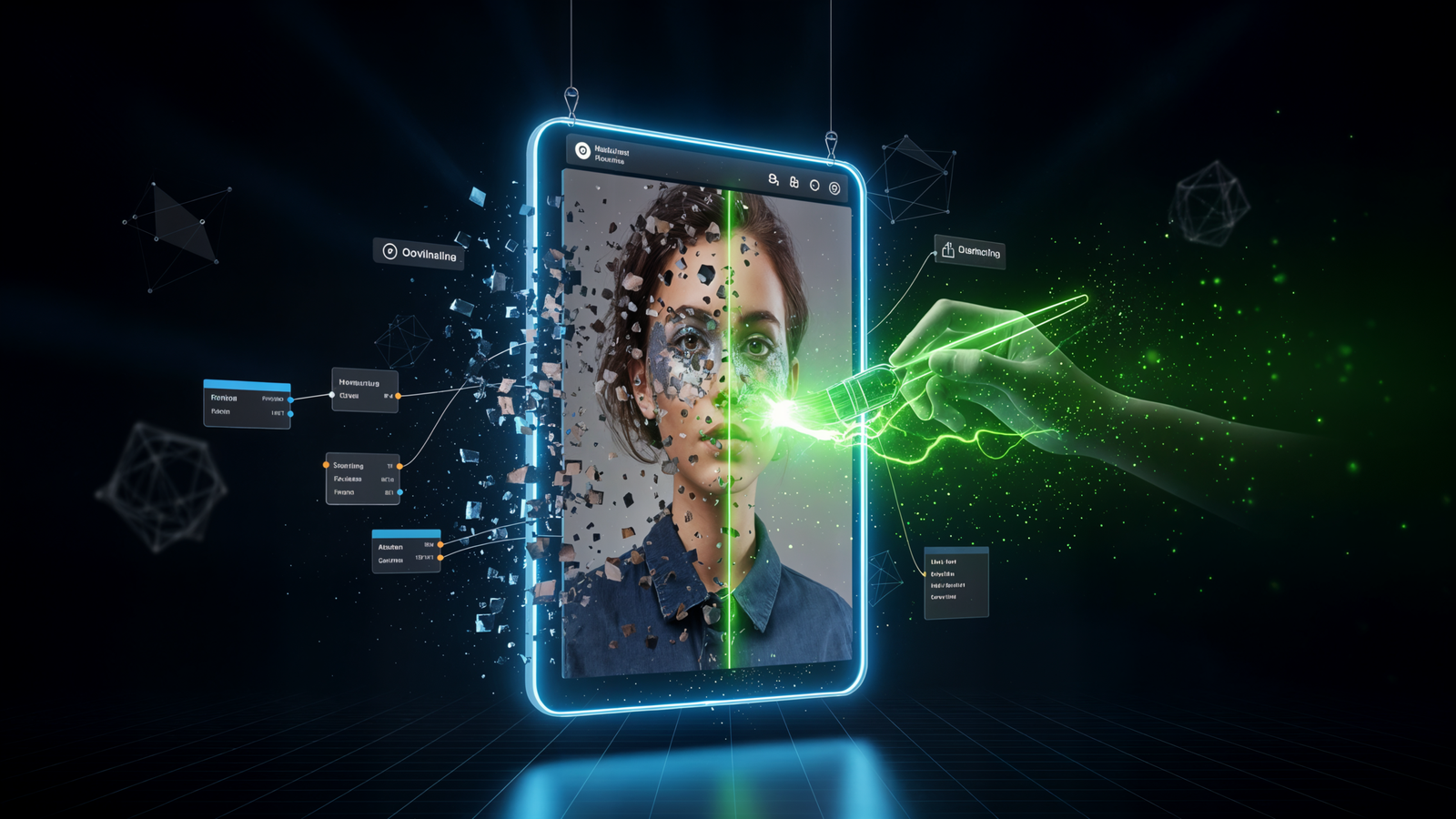
Inpainting is the process of regenerating a specific area of an image while keeping the surrounding pixels unchanged. In tools like Midjourney, this feature is known as Vary Region.
It is the industry standard for fixing small glitches—like a stray finger or a weird eye—or changing specific elements, such as swapping a t-shirt for a leather jacket, without altering the character’s pose.
How to Use Vary Region (Step-by-Step)
To rank high in quality and consistency, follow this standard editing workflow:
- Upscale Your Image: You can only edit a single, upscaled image.
- Select ‘Vary (Region)’: Click the button under your upscaled result. An editor window will pop up.
- Select the Area: Use the Rectangle Tool for large sections or the Lasso Tool for organic shapes (like hands or hair).
- Pro Tip: Select slightly more space than you think you need. The AI needs “context pixels” around the target to blend the new generation seamlessly.
- Modify the Prompt (Remix Mode):
- To Fix Mistakes: Keep the prompt exactly the same. The AI will re-roll that specific area to attempt a better version.
- To Change Elements: Delete the original prompt and type dat alleen what you want in that spot.
- Submit: The AI will generate a new grid of 4 options for that specific region.
Prompt Engineering Tip for Inpainting:
When changing an object (e.g., adding “sunglasses”), simplify your prompt. Don’t paste the entire original description. Instead of “A cyberpunk woman standing in a neon city wearing sunglasses,” just type “sunglasses” or “wearing sunglasses.” The AI already knows the context from the original image; it just needs to know what to add.
2. What is Outpainting? (Zoom Out)
Outpainting is the technique of extending the canvas of an image beyond its original borders. In Midjourney, this is primarily handled by the Zoom Out en Pan features.
This is critical for responsive web design, allowing you to turn a square (1:1) Instagram post into a wide (16:9) website header without cropping out the subject.
Mastering ‘Zoom Out’ and ‘Custom Zoom’
- Zoom Out 2x / 1.5x: These buttons automatically generate new content around your image, scaling the original down by 50% or 33%. It uses the original prompt and style to fill in the blank space.
- Make Square: If you have a portrait or landscape image, this button extends the short sides to create a perfect 1:1 square.
Advanced Strategy: The ‘Custom Zoom’ Hack
The Custom Zoom button allows you to change the prompt while zooming out. This is a powerful “Framing” technique.
Example Workflow:
- Start with a close-up portrait of a face.
- Click Custom Zoom.
- Change the prompt to: “A framed painting on a museum wall –ar 16:9 –zoom 2”
- Result: Your original face is now a painting inside a museum, and the canvas has widened.
3. Artifact Removal: Fixing Glitches Manually
Even the best models (like Midjourney v6 or DALL-E 3) struggle with hands, text, and extra limbs. Artifact removal is the manual workflow of cleaning these up within the generation tool.
The “Patching” Technique
Don’t try to fix everything at once. If an image has bad hands en a weird background artifact, fix them in passes:
- Pass 1: Select the hands. Reroll until perfect. Upscale the best one.
- Pass 2: Take the result from Pass 1. Select the background glitch. Reroll.
Troubleshooting Stubborn Artifacts
Sometimes the AI refuses to fix a hand because it doesn’t “understand” the anatomy of that specific pose.
- The “Empty Prompt” Method: If you want to remove an object entirely (e.g., a weird bird in the sky), select it using Vary Region and leave the prompt blank (or type simple noise like “sky”). The AI will often fill it with the surrounding texture.
- Iterative Selection: If a hand has 6 fingers, don’t select the whole hand. Select only the 6th finger and the empty space next to it. The AI will often interpret this as “remove this object.”
Summary Table: When to use which tool?
| Issue | Tool | Action |
| Bad Hands / Face | Vary Region (Inpainting) | Select area, keep prompt same, reroll. |
| Wrong Aspect Ratio | Zoom Out / Pan | Expand canvas to fit 16:9 or 9:16. |
| Subject too Close | Zoom Out 2x | Push subject back to reveal environment. |
| Unwanted Object | Vary Region | Select object, modify prompt to remove or blend. |
Final Thoughts
Beheers Inpainting en Outpainting shifts your role from a “slot machine player” pulling the lever for a lucky result, to a Creative Director with full control over the composition. By combining precision selection with smart keyword prompt engineering, you can turn almost any “failed” generation into a masterpiece.