
How to master digital product placement by combining traditional studio photography with AI-generated environments.
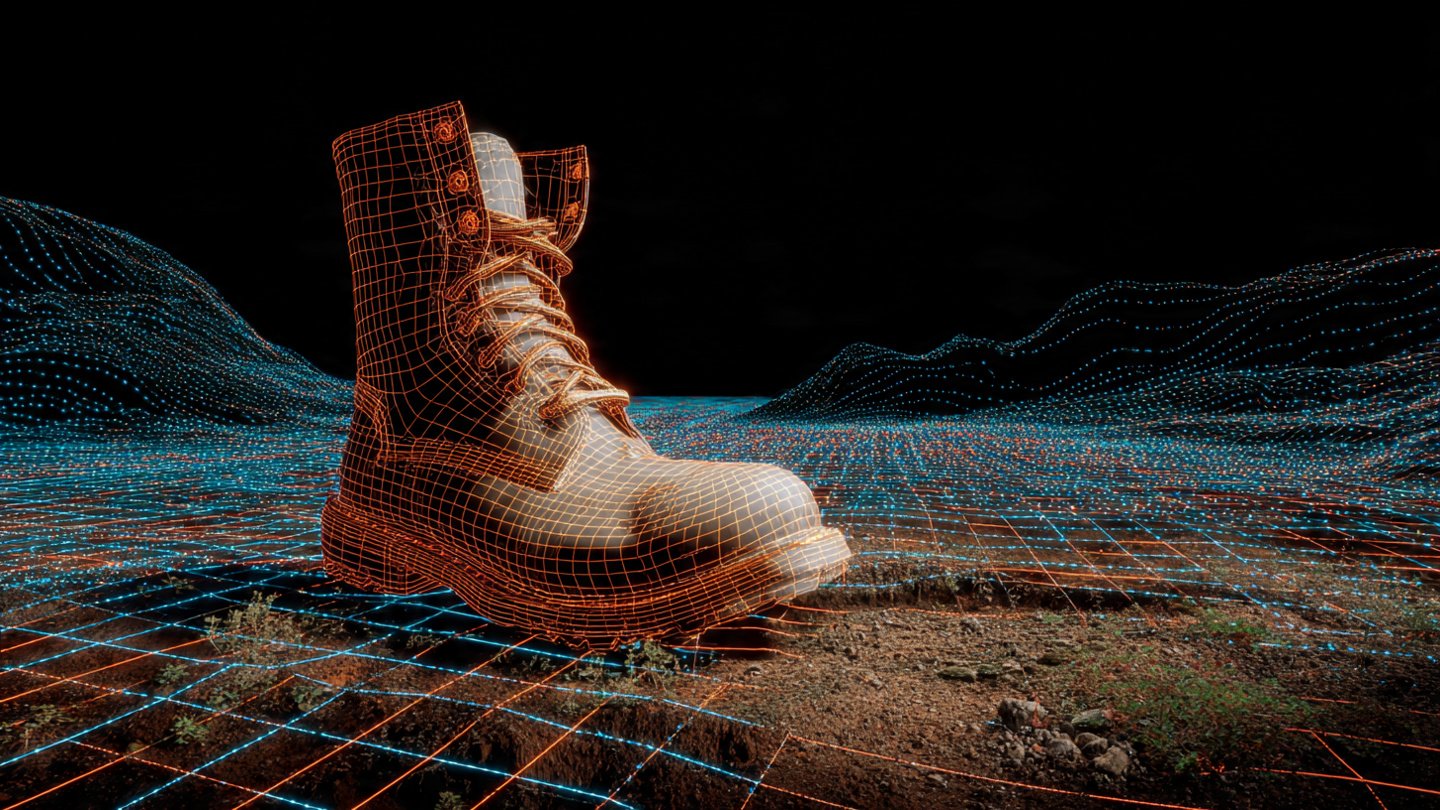
In the era of generative AI, the definition of product placement has shifted. It is no longer just about paying for a soda can to appear in a movie scene; it is about seamless digital integration. Brands and creators are now using a hybrid workflow—“Real Product, Fake World”—to place physical items into limitless digital environments without the cost of travel or location scouting.
This guide outlines the definitive Composite Method, a technique designed to bypass the limitations of AI (which often hallucinates text and logos) by marrying real studio photography with AI-generated negative space.
Why the “Composite Method” is the New Standard
The “Composite Method” solves the biggest problem in AI product photography: Brand Integrity.
If you try to “prompt” a specific sneaker or perfume bottle into Midjourney or DALL-E, the AI will warp the logo, misspell the brand name, or hallucinate buttons that don’t exist. You cannot trust a purely generative workflow with your physical product.
Instead, the Real Product, Fake World workflow treats the process as a digital collage:
- The Real: A high-resolution photograph of the actual product (perfectly lit and sharp).
- The Fake: An AI-generated background designed with “Negative Space” to house the product.
- The Merge: A Photoshop composite that integrates the two using light matching and shadow fabrication.
Phase 1: The “Real” (Studio Capture)
Before opening any AI tools, you must capture the “asset”—your physical product.
The goal here is isolation. You are not trying to create a final image; you are creating a digital sticker of your product that can be placed anywhere.
- Shoot on White: Photograph your product against a pure white or neutral grey background. This makes the “Select Subject” tool in Photoshop work instantly.
- Flat Lighting is Flexible: If you don’t know what background you will use yet, shoot with soft, even lighting (large softbox). This allows you to add directional shadows later.
- Perspective Matching: Shoot the product straight-on (eye level) and at a slightly downward angle (45 degrees). These are the two most common angles you will prompt for in your AI background.
Pro Tip: Do not shoot wide open (e.g., f/1.8). Shoot at f/8 or f/11 to ensure the entire product is sharp. You can add blur (depth of field) in post-production, but you cannot fix a blurry product label.
Phase 2: The “Fake” (Generating Negative Space)
This is where product placement strategy comes into play. You need to generate an environment that invites the product rather than fighting it.
The most common mistake is prompting for a “busy” scene. Instead, you must prompt for Negative Space—empty areas in the composition explicitly reserved for your product.
How to Prompt for Negative Space
When using tools like Midjourney, Adobe Firefly, or Stable Diffusion, use keywords that force the AI to clear a stage for you.
- The “Empty Table” Technique:
- Prompt: “A rustic wooden table in a sunlit kitchen, empty surface in center, shallow depth of field, bokeh background, wide angle.”
- The “Minimalist” Technique:
- Prompt: “Podium product display, pastel pink background, minimalist composition, large negative space in middle, soft studio lighting.”
By explicitly asking for “empty surface” or “negative space,” you prevent the AI from populating the scene with random cups, vases, or artifacts that you would otherwise have to clone out.
Phase 3: Light Matching (The Glue)
For a product placement to look expensive, the light on the product must match the light in the world. The human eye is incredibly good at spotting “physics violations”—like a background with light coming from the right, while the product has a shadow falling to the right.
You must synchronize your prompt with your studio shot (or vice versa).
Directional Prompting
If your studio product shot has a highlight on the left side, your AI background prompt must account for that light source.
- Prompt Syntax:
[Subject] + [Environment] + [Lighting Direction] + [Mood] - Example: “Empty marble counter, luxury bathroom, soft window light coming from left, bright airy atmosphere.”
| Studio Light Direction | AI Prompt Keyword to Use |
| Left Side | “Light from left,” “Window on left,” “Morning sun from east” |
| Right Side | “Light from right,” “Sunset from right,” “Lamp on right” |
| Backlight (Rim) | “Backlit,” “Silhouette,” “Sun behind subject,” “Halo effect” |
| Overhead (Flat) | “Overhead softbox,” “Cloudy day,” “Diffused lighting” |
Phase 4: Shadow Integration (Grounding)
This is the step that separates amateurs from pros. Without shadows, your product looks like a floating sticker. To achieve realistic product placement, you must create two distinct types of shadows in Photoshop.
1. Contact Shadow (The Anchor)
This is the dark, thin shadow directly underneath the object where it touches the surface.
- Technique: Use a small, hard black brush in Photoshop right at the base of the product. Lower the opacity to 60-70%. This “weights” the object.
2. Cast Shadow (The Direction)
This is the shadow thrown by the object onto the table or floor.
- Technique: Duplicate your product layer, turn it black (using Levels or Color Overlay), flip it vertically, and distort it to match the direction of the light in your AI background. Apply a “Gaussian Blur” to this shadow layer—shadows naturally get blurrier the further they get from the object.
Key Insight: Shadows are rarely pure black. Use the eyedropper tool to sample a dark color from the AI background (e.g., dark brown for wood, dark grey for stone) and use that for your shadow color to ensure natural blending.
Summary Checklist for Digital Product Placement
- Capture: High-res product on white, sharp focus.
- Generate: AI background with “negative space” and matching light direction.
- Composite: Place product, scale correctly to the environment.
- Ground: Add contact shadows (hard) and cast shadows (soft/blurred).
- Grade: Apply a final “Noise” or “Grain” layer over the entire image (at 2-3% opacity) to unify the digital background and the real photo.
This “Real Product, Fake World” workflow allows brands to scale their product placement infinitely—putting a single lotion bottle on a beach in Bali, a penthouse in New York, and a cabin in the Alps, all before lunch.